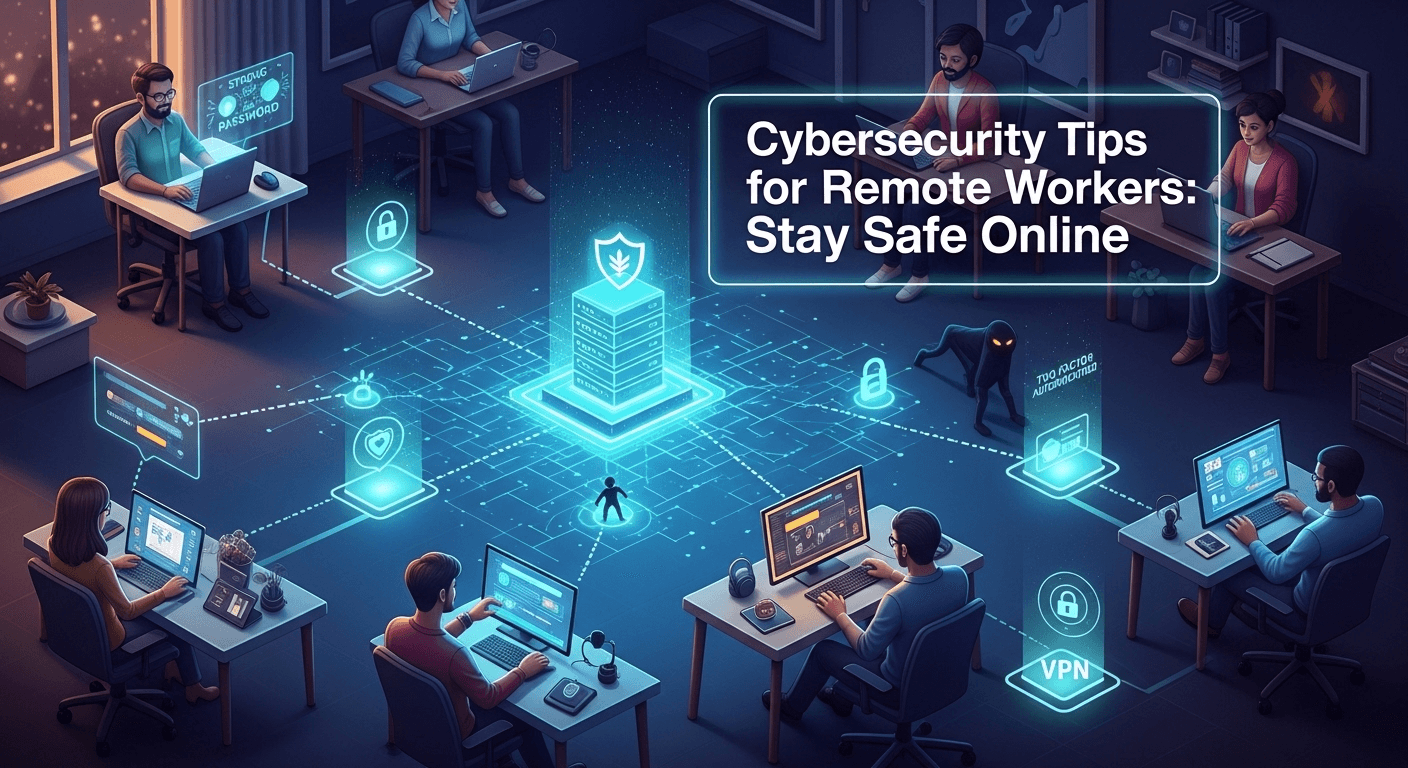
Cybersecurity Tips for Remote Workers: Stay Safe Online Remote work gives us flexibility—but it also widens the attack surface for cybercriminals. If you’re logging in from home, coworking spaces, or on the move, you need a security posture that travels with you. In this guide, you’ll find practical, evergreen cybersecurity tips for remote workers to reduce risk without slowing down your day. From securing devices and networks to spotting social engineering, you’ll learn how to protect your work, your team, and your privacy. Understanding the Remote Work Threat Landscape The New Attack Surface Working outside the traditional office replaces controlled perimeters with personal devices, home routers, and cloud tools. That decentralization creates more entry points for attackers. Remote workers often juggle multiple networks—home Wi‑Fi, mobile hotspots, public Wi‑Fi—which can be misconfigured or unencrypted, giving adversaries more opportunities to snoop or inject malicious traffic. In this environment, your identity becomes the new perimeter. If an attacker can compromise your credentials, they can move laterally across cloud platforms and business apps. That’s why identity-focused defenses such as multifactor authentication and conditional access are critical. The goal is to ensure that even if one layer fails, another stands in the way. Finally, remote collaboration tools—video meetings, chat, file sharing—multiply the vectors for phishing, impersonation, and data leakage. Attackers don’t need to breach a firewall when they can trick an individual into granting access. Understanding this landscape helps prioritize the controls that deliver the biggest protection per minute of effort. Common Remote Work Threats Phishing and social engineering remain the number one threats. Sophisticated emails or direct messages might mimic HR portals, shipping updates, or IT support notices. Malicious attachments, fake login pages, and OAuth app consent scams aim to harvest credentials or deploy malware. Attackers exploit urgency and emotion, especially around payroll, benefits, or security alerts. Unsecured Wi‑Fi and rogue hotspots expose your traffic to interception. Without proper encryption and verification, attackers can perform man-in-the-middle attacks to capture logins or inject malicious content. Even at home, default router credentials and outdated firmware create hidden vulnerabilities. Shadow IT and poor app hygiene also raise risk. When employees adopt tools without security review, sensitive data may end up in platforms with weak controls. Meanwhile, unpatched devices, weak passwords, and shared accounts make it easier for attackers to gain persistence. Why Human Behavior Matters Technology blocks many attacks, but human behavior determines whether those tools are used correctly. A single reused password can undo the protection of a well-configured laptop. Good habits—pausing before clicking, locking your screen, and verifying unexpected requests—create a human firewall that complements technical defenses. Remote work can also blur boundaries. Responding to messages late at night, toggling between personal and work accounts, or downloading files on the go increases cognitive load. Attackers capitalize on distraction. Building routines, like scheduled updates and weekly security checks, reduces the chance of error. Most importantly, reporting suspicious activity early transforms incidents from crises into minor blips. The faster your IT or security team knows about a potential compromise, the smaller the blast radius. Make it a habit to ask, not assume—especially when money or access is involved. Secure Your Devices and Accounts Strong Authentication and Password Hygiene Start with identity. Use multifactor authentication (MFA) everywhere it’s available, especially for email, cloud storage, and productivity hubs. Prefer phishing-resistant factors like FIDO2 security keys or platform authenticators when possible. App-based authenticators are stronger than SMS, which can be vulnerable to SIM swap attacks. Adopt a password manager to generate and store unique, long passwords (16+ characters) for each account. This eliminates reuse and simplifies logins across devices. Enable breach alerts in your manager, and rotate passwords promptly when a site is compromised or when you suspect credential exposure. Avoid shared credentials. If your team needs access to a common account, use enterprise features like delegated access or group permissions. Where supported, enable single sign-on (SSO) so your organization can centrally enforce MFA and session policies. Device Hardening and Updates Keep your operating system and software up to date. Turn on automatic updates for the OS, browsers, and critical apps. Many attacks exploit known vulnerabilities that patches already fix. Don’t ignore firmware: update your UEFI/BIOS, router, and peripherals at least quarterly. Enable full-disk encryption (e.g., BitLocker on Windows, FileVault on macOS) to protect data if your device is lost or stolen. Pair it with a strong device password and ensure the lock screen activates quickly. Disable auto-login and remove unnecessary startup apps to reduce attack surface. Use standard user accounts for daily work and a separate admin account for rare administrative tasks. This least privilege approach limits damage if malware runs on your device. Turn on OS-native protections: Windows Defender or reputable endpoint protection, firewall, and browser security features like DNS protection and Safe Browsing. Mobile Security Basics Phones and tablets often hold sensitive data and tokens for MFA. Keep them locked with biometrics and a strong passcode. Update iOS or Android promptly and uninstall apps you no longer use. Review app permissions and disable those that don’t align with functionality. Avoid sideloading apps and stick to official app stores. Turn off Bluetooth and location services when not needed, and set devices to auto-lock after a short period. For work devices, enroll in your company’s mobile device management (MDM) to enable remote wipe and enforced security policies. When traveling, consider a privacy screen and disable notifications from showing message content on lock screens. Be mindful of shoulder surfing on trains or in cafes. Physical privacy supports digital security. Network and Data Protection Safe Wi‑Fi and VPN Usage At home, change default router passwords, enable WPA3 (or at least WPA2), and update router firmware. Create a separate guest network for visitors and IoT devices to isolate them from work devices. Use a strong, unique Wi‑Fi passphrase and avoid broadcasting what hardware you use in the network name. On the road, avoid logging into sensitive accounts over public Wi‑Fi. If you must connect, use a trusted VPN that supports modern