
Secure your online privacy with the best free VPN. Browse anonymously, unblock content, and protect your data from prying eyes – all without compromising speed or security.

Free VPN for Android: Reliable & Secure VPN Service
Free VPN for Android: Stay safe online with our reliable and secure VPN service. Browse anonymously and access any content without restrictions on your Android device.
Does A VPN Affect Internet Speed
When it comes to using a Virtual Private Network (VPN), one common concern that often arises is whether or not it affects internet speed. We rely on the internet for various activities, from streaming movies and music to conducting important business transactions. So, it’s only natural to wonder about the impact a VPN may have on our online performance. In this article, we will explore the potential effects of using a VPN on your internet speed. By understanding the factors at play, you can make an informed decision about whether or not to utilize a VPN for your online activities. Let’s delve into the world of VPNs and uncover the truth about their impact on internet speed. How VPNs Work Understanding the inner workings of Virtual Private Networks (VPNs) is essential for comprehending their impact on internet speed. VPNs provide a secure and private connection between your device and the internet by routing your traffic through an encrypted tunnel. When you connect to a VPN server, your data is encrypted before it leaves your device. This encryption ensures that your online activities are shielded from prying eyes, such as hackers, ISPs, or government surveillance agencies. The encrypted data is then sent through the VPN server, which acts as an intermediary between your device and the internet. Encryption and Tunnelling The encrypted data is wrapped in an additional layer of protection by the VPN protocol, which varies depending on the VPN service being used. This protocol encapsulates the encrypted data into packets and sends them through the VPN tunnel. The VPN tunnel is a secure pathway that keeps your data safe from external interference. It prevents malicious actors from intercepting or tampering with your information while it is in transit. By using a VPN, your data gains an extra layer of security, making it more difficult for cybercriminals to compromise your online privacy. Routing and IP Address Masking One of the key functions of a VPN is to route your internet traffic through its servers. This routing process replaces your real IP address with the IP address of the VPN server you are connected to. By masking your IP address, a VPN helps protect your identity and location, adding an extra layer of anonymity. Moreover, VPNs typically have servers located in various countries around the world. This geographical diversity allows users to choose a server location that aligns with their needs. By connecting to a server in a specific country, you can bypass geographical restrictions and access region-locked content, expanding your online possibilities. Workings of Internet Speed While VPNs offer enhanced security and privacy, they can potentially affect internet speed due to a few reasons. The process of encrypting and decrypting your data consumes additional processing power and can introduce some latency. Additionally, the distance between your physical location, the VPN server, and the destination website can also impact speed. Still, many premium VPN providers invest in robust server infrastructure and implement optimizations to minimize speed loss. By understanding how VPNs work and the factors that influence their performance, you can make informed decisions to balance privacy and speed when using a VPN. Factors Influencing VPN Speed When using a VPN, there are several factors that can influence the speed of your internet connection. Understanding these factors can help you make informed decisions when choosing a VPN service. Let’s explore the key considerations: Server Location: The proximity of the VPN server to your physical location can impact the speed of your connection. Connecting to a server that is geographically closer to you generally results in faster speeds. Encryption Protocol: The encryption protocols used by the VPN can have an effect on speed. More robust encryption typically requires more processing power, which can slow down your connection. However, modern VPNs offer optimized encryption protocols that balance security and speed. VPN Provider’s Network: The quality and capacity of the VPN provider’s network play a crucial role in determining speed. Reputable VPN providers have robust infrastructure and extensive server networks, which can contribute to faster and more reliable connections. Original Internet Speed: Your base internet speed, provided by your ISP, affects the overall performance of your VPN connection. If you have a slower initial connection, using a VPN may result in reduced speeds due to the additional encryption and routing processes. Internet Congestion: Network congestion during peak hours can impact the speed of your VPN connection. This can occur on both your ISP’s network and the VPN provider’s network. Choosing a VPN provider with ample bandwidth and server capacity can help mitigate this issue. By considering these factors, you can optimize your VPN speed and ensure a smooth online experience while maintaining the privacy and security benefits of using a VPN. Tips to Optimize VPN Speed When using a VPN, it’s not uncommon to experience a slight decrease in internet speed. However, there are several tips and strategies you can implement to optimize your VPN speed and ensure a smooth online experience. 1. Choose the Right Server Location One of the main factors that can impact VPN speed is the distance between your physical location and the server you’re connected to. To minimize latency and maximize speed, choose a server location that is closest to your physical location. This will reduce the time it takes for data to travel between your device and the server. 2. Use Lightweight VPN Protocols VPN protocols determine how your data is encrypted and transmitted. Some protocols, such as OpenVPN, are known to be more resource-intensive and can potentially slow down your internet speed. Opt for lightweight protocols like WireGuard or IKEv2, which offer a balance between security and performance. 3. Connect to a Wired Network If possible, connect your device to the internet using an Ethernet cable instead of relying solely on Wi-Fi. Wired connections generally offer more stability and faster speeds compared to wireless connections, which can be affected by signal interference and distance from the router. 4. Close Bandwidth-Intensive Applications Bandwidth-intensive applications like file-sharing programs or high-definition streaming services can
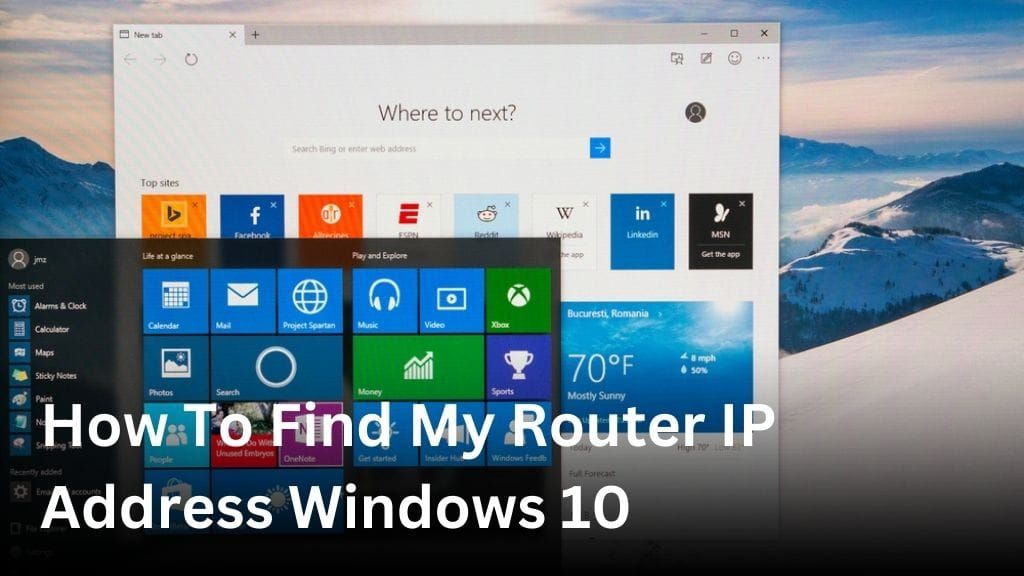
How To Find My Router IP Address Windows 10
Welcome to our guide on how to find your router IP address on Windows 10! Knowing your router’s IP address is crucial for accessing your router settings and making necessary changes. Whether you’re troubleshooting network issues or configuring your network, finding your router IP address is the first step. In this article, we will provide you with step-by-step instructions on how to locate your router IP address on Windows 10. We will walk you through different methods and techniques to ensure you can easily access your router settings and maximize your network’s performance. So, let’s get started and find that elusive router IP address! Locating Your Router IP Address on Windows 10 In this section, we will guide you on how to locate your router IP address on Windows 10. It is important to know your router’s IP address as it allows you to access your router settings and make necessary changes. Method 1: Using Command Prompt: Press the Windows key + R on your keyboard to open the Run dialog box. Type in “cmd” and press Enter to open the Command Prompt. In the Command Prompt window, type “ipconfig” and press Enter. Look for the “Default Gateway” under your network adapter’s section to find your router IP address. Method 2: Using Network Connection Status: Right-click on the network icon in the system tray and select “Open Network & Internet settings.” In the Settings window, click on “Change adapter options” under the “Change your network settings” section. Right-click on your active network connection and select “Status.” In the Status window, click on “Details” to view your router IP address listed as the “IPv4 Default Gateway.” Method 3: Using Router’s Web Interface: Open your preferred web browser and enter your router’s IP address in the address bar. Press Enter to access the router’s web interface. If prompted, enter your router’s username and password to log in. Once logged in, navigate through the settings menus to find your router IP address. By following these methods, you can easily locate your router IP address on Windows 10. Having this information at hand ensures convenient access to your router settings for configuration and troubleshooting purposes. Finding Your Modem IP Address on Windows 10 If you’re looking to troubleshoot or configure your modem on Windows 10, it’s essential to know how to find your modem IP address. This unique address is used to identify your modem on the network and allows you to access its settings. Here are the steps to find your modem IP address on Windows 10: Open the Command Prompt by searching for it in the Windows Start menu. In the Command Prompt window, type ipconfig and press Enter. Look for the “Default Gateway” under the network adapter you’re using for your modem connection. The number displayed next to “Default Gateway” is your modem IP address. By following these steps, you can quickly locate your modem IP address on Windows 10. This information will be handy when you need to troubleshoot any issues or access advanced settings on your modem. Accessing Router Settings on Windows 10 When it comes to managing your network configuration, accessing your router settings on Windows 10 is crucial. By accessing your router settings, you can make necessary changes to enhance your network performance and security. Here, we will guide you through the process of accessing your router settings on Windows 10 using the router’s gateway IP address. Step 1: Find Your Router’s Gateway IP Address The first step is to find your router’s gateway IP address. To do this: Open the Windows 10 Start menu. Search for “Command Prompt”. Open the Command Prompt application. In the Command Prompt window, type “ipconfig” and press Enter. Look for the “Default Gateway” under the section that corresponds to your active network connection. Note down the IP address listed as the Default Gateway. This is your router’s gateway IP address. Step 2: Access Your Router’s Settings Once you have your router’s gateway IP address, follow these steps to access your router settings: Open a web browser (such as Chrome, Firefox, or Edge) on your Windows 10 device. Type the router’s gateway IP address into the address bar and press Enter. You will be directed to the router’s login page. Enter the username and password for your router. If you haven’t changed it before, refer to your router’s manual or check the manufacturer’s website for the default login credentials. Once logged in, you will have access to your router’s settings interface where you can make the necessary changes to your network configuration. Keep in mind that accessing your router settings requires administrative access. If you do not have the necessary credentials, you may need to reach out to your Internet Service Provider or the person who set up your network for assistance. Windows 10 Network Settings and Router IP In this section, we will explore the relationship between Windows 10 network settings and your router IP address. Understanding how these settings work together is crucial for maintaining a reliable and secure connection to your router. Viewing Network Settings on Windows 10 To begin, let’s take a look at how you can view your network settings on Windows 10. Follow these steps: Click on the Start menu and select “Settings.” In the Settings window, click on “Network & Internet.” Under the “Status” tab, you’ll find information about your network connection. Scroll down and click on “Network and Sharing Center.” In the Network and Sharing Center, you can view details about your network connections and access additional network settings. Modifying Network Settings on Windows 10 Now, let’s discuss how you can modify your network settings on Windows 10. Here’s what you need to do: Access the Network and Sharing Center by following the steps mentioned above. Click on the “Change adapter settings” option on the left-hand side. Right-click on the network connection you want to modify and select “Properties.” In the Properties window, you can make changes to settings like IP address, DNS server, and more. Once you’ve made the necessary changes, click “OK” to save them.
How To Bypass Censorship With A VPN
Welcome to our guide on how to bypass censorship with a VPN. In today’s digital age, internet restrictions and censorship are prevalent in various parts of the world. Whether you want to access blocked websites, overcome geo-restrictions, or ensure your online privacy, a VPN (Virtual Private Network) can be your ultimate solution. A VPN allows you to browse the internet securely and anonymously by encrypting your internet traffic and routing it through a private server. It acts as a shield, allowing you to bypass censorship and regain control of your online freedom. By using a VPN for bypassing censorship, you can access blocked content, evade government surveillance, and enjoy unrestricted online access. Whether you’re living in a country with strict internet regulations or simply want to enhance your online privacy, a VPN can be your key to unrestricted internet access. In the upcoming sections, we will delve deeper into the concept of censorship and its impact on internet access. We will explain what a VPN is, how it works, and provide step-by-step instructions on setting up and configuring your VPN. Additionally, we will share tips and strategies for maximizing your online freedom and bypassing censorship. So, let’s get started on your journey to bypass censorship with a VPN, ensuring a safe and secure online experience. Together, we can overcome internet restrictions and access the content you desire easily and efficiently. Understanding Censorship and its Impact In today’s digital age, the internet has become a fundamental tool for communication, information sharing, and access to a vast array of content. However, censorship continues to pose a significant threat to online freedom, limiting users’ ability to express themselves and restricting access to certain websites and services. Censorship can take various forms, ranging from government-imposed restrictions on political content to corporate censorship by internet service providers (ISPs) and social media platforms. These restrictions not only limit the flow of information but also impact individuals and communities who rely on the internet for education, research, and connecting with others. Why does Censorship Exist? Censorship often arises from governments and institutions aiming to control the narrative and maintain their power. It may be driven by political ideologies, religious beliefs, or concerns about national security. While some argue that censorship helps maintain social order and protect citizens from harmful content, others view it as an infringement on individual rights and an impediment to free speech. Impacts of Censorship on Internet Access The effects of censorship on internet access can be far-reaching. It can limit the ability of individuals and businesses to communicate and collaborate internationally, stifle innovation, and hinder the free exchange of ideas. Access to essential information, alternative viewpoints, and cultural expression may be severely restricted, resulting in a digital divide and hindering societal progress. Using a VPN to Circumvent Censorship Fortunately, there are tools available to help individuals bypass internet restrictions and regain control of their online freedom. One such tool is a Virtual Private Network (VPN). By encrypting your internet connection and routing it through servers located in different countries, a VPN allows you to bypass censorship imposed by governments or ISPs. With a VPN, you can access websites and services that would otherwise be blocked, circumvent geographic restrictions, and protect your privacy online. By masking your IP address and encrypting your internet traffic, a VPN ensures that your online activities remain private and secure, even in countries with strict censorship policies. Whether you are a journalist, activist, or simply a person who values unrestricted access to information, using a VPN can be an effective way to overcome censorship and reclaim your digital freedom. Easily bypass internet restrictions and access blocked websites Ensure the privacy and security of your online activities Protect yourself from government surveillance and monitoring Connect with individuals and communities globally In the next section, we will explore what a VPN is and how it works, enabling you to make informed choices when it comes to bypassing censorship and accessing unrestricted content. What is a VPN and How Does it Work? In today’s digital age, where internet censorship is prevalent, understanding how a VPN (Virtual Private Network) works is essential. A VPN acts as a secure tunnel between your device and the internet, encrypting your online traffic and ensuring your privacy and security. But why is it important to use a VPN for unrestricted access to online content and bypassing censorship? Let’s explore some of the benefits: Bypass Internet Censorship: A VPN allows you to bypass censorship imposed by governments, organizations, or ISPs (Internet Service Providers). It masks your IP address and assigns you a new one from a different location, making it appear as if you are browsing from a different country altogether. Access Blocked Content: With the best VPN for censorship, you can access online content that may be restricted or blocked in your geographical region. By connecting to a server in a different country, you can unblock websites, streaming services, and social media platforms. Increase Privacy and Security: VPNs encrypt your internet traffic, protecting it from potential snoopers, hackers, and cybercriminals. This ensures that your personal data, online activities, and communications remain private and secure. Anonymous Browsing: By masking your IP address, a VPN enables anonymous browsing. This means that your online activities cannot be traced back to your real IP address, providing you with enhanced privacy and anonymity. By utilizing the best VPN for censorship, you can unlock a world of unrestricted online access, bypass internet censorship, and protect your privacy and security. Whether you’re an avid traveler, an expat living abroad, or simply a privacy-conscious individual, a VPN is an invaluable tool to ensure your online freedom and privacy. Choosing the Right VPN Provider When it comes to bypassing censorship, choosing the right VPN provider is crucial. With numerous options available in the market, it’s important to consider key factors that ensure a seamless experience. Here are the top considerations to keep in mind: 1. Security: Look for a VPN provider that offers robust security measures such as encryption
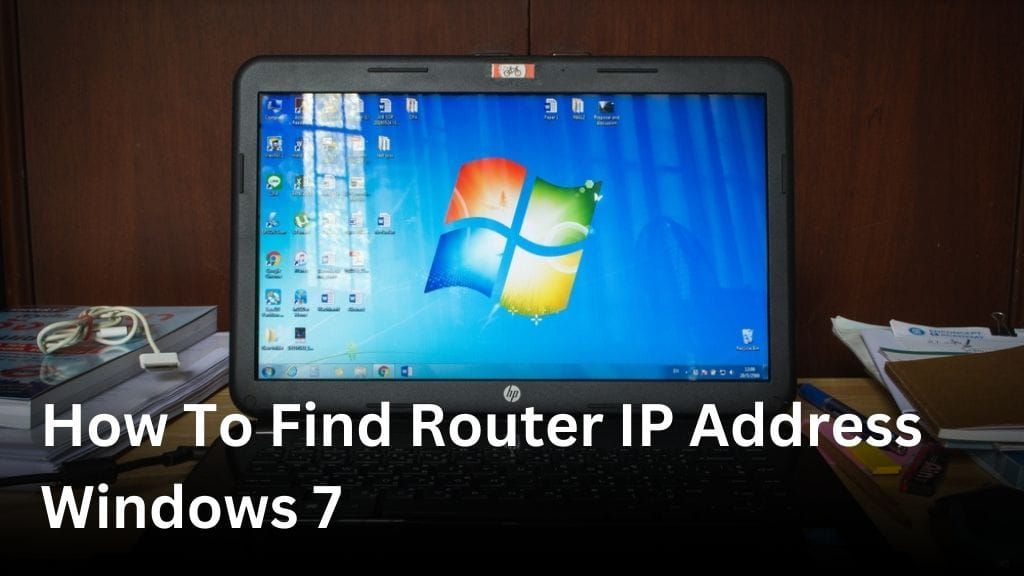
How To Find Router IP Address Windows 7
Welcome to our comprehensive guide on how to find the IP address of your router on a Windows 7 operating system. Knowing your router’s IP address is crucial for managing your network settings and making any necessary configurations. In this article, we will provide you with step-by-step instructions to help you locate your router’s IP address effortlessly. Whether you’re a beginner or an experienced user, finding your router’s IP address is an essential skill that can empower you to take control of your network. By knowing this information, you can troubleshoot connectivity issues, change security settings, and optimize your network’s performance. Throughout this guide, we will explore different methods that you can use to locate the IP address of your router on Windows 7. We will cover both the graphical user interface (GUI) method and the command prompt method, so you can choose the approach that suits your preferences. Additionally, we will provide troubleshooting tips to address any difficulties you may encounter along the way. Are you ready to unlock the power of your network? Let’s dive in and discover how to find the IP address of your router on Windows 7. Locating the Router IP Address When it comes to managing your network settings on a Windows 7 operating system, knowing the IP address of your router is crucial. Having this information allows you to make necessary configurations and ensure smooth connectivity. In this section, we will explore two different methods to help you locate your router’s IP address in Windows 7, offering you the flexibility to choose the option that suits you best. Using the Graphical User Interface (GUI) Method If you prefer a visual interface, the GUI method can help you easily find your router’s IP address. By navigating through the network settings in Windows 7, you can access the necessary information with just a few clicks. Our step-by-step guide in the next section will walk you through the process, ensuring a hassle-free experience. Using the Command Prompt Method If you are comfortable using command line interfaces, the Command Prompt method provides a quick and efficient way to locate your router’s IP address. By entering a few simple commands, you can retrieve the information you need. In the following section, we will guide you through the commands and explain the process, empowering you to effortlessly obtain your router’s IP address. Using the Graphical User Interface (GUI) Method In this section, we will guide you through the process of finding your router’s IP address using the graphical user interface (GUI) in Windows 7. This user-friendly method is ideal for those who prefer a visual interface and want to navigate through their network settings with ease. To begin, follow these steps: Click on the Start Menu in the bottom left corner of your screen. Select Control Panel. In the Control Panel window, locate and click on the “Network and Internet” category. Next, click on “Network and Sharing Center.” Within the Network and Sharing Center, you will see the name of your active network connection. It could be labeled as “Connections” or display the name of your network provider. Click on the connection name to proceed. A new window will open. Click on the “Details” button. In the Network Connection Details window, look for the “IPv4 Default Gateway” field. The IP address listed in this field is the IP address of your router. By following these steps, you can easily locate your router’s IP address using the GUI method in Windows 7. This information is essential for configuring and managing your network settings effectively. Using the Command Prompt Method If you prefer a command line interface, you can easily find your router’s IP address using the Command Prompt in Windows 7. This method offers a quick and efficient way to retrieve the necessary information for your network configuration. First, open the Command Prompt by pressing the “Windows key + R” on your keyboard to open the Run dialog box. Type “cmd” in the box and press Enter. Once the Command Prompt window opens, type the command “ipconfig” and press Enter. This command will display a list of network adapters and their configurations. Scroll through the list and locate the network adapter that is currently connected to your router. It is usually labeled as “Ethernet adapter” or “Wireless LAN adapter” followed by the name of your network connection. Under the network adapter’s configuration details, look for the “Default Gateway” entry. The IP address mentioned in this entry is your router’s IP address. Now that you have successfully retrieved your router’s IP address using the Command Prompt, you can utilize it to access your router’s configuration settings and make any necessary changes or updates to your network. Troubleshooting Tips If you are facing difficulties in finding your router’s IP address using the methods mentioned in the previous sections, don’t worry. We have some troubleshooting tips to help you overcome any obstacles. 1. Verify Router Connection Ensure that your router is properly connected to your Windows 7 computer. Check the Ethernet cable connections and make sure they are securely plugged in. If you are using a wireless connection, ensure that you are connected to the correct network. 2. Restart Your Router and Computer Restarting your router can sometimes resolve connectivity issues. Power off your router, wait for a few seconds, and then power it back on. Additionally, restart your Windows 7 computer to refresh the network settings and establish a new connection with the router. 3. Disable Firewall and Antivirus Software Your firewall or antivirus software may sometimes interfere with the network connection. Temporarily disable these security measures and check if you can locate the router’s IP address. Remember to enable them again once you have completed the troubleshooting process. 4. Use Command Prompt with Administrative Privileges If the Command Prompt method didn’t work for you initially, try running it with administrative privileges. Right-click on the Command Prompt icon and select “Run as administrator.” This may provide the necessary permissions to access
What Is VPN Encryption And How Does It Work?
In today’s digital age, where privacy and security are paramount concerns, the term “VPN encryption” has become increasingly prevalent. But what exactly does it entail, and why is it crucial for safeguarding our online activities? Understanding VPN Encryption What is VPN Encryption? VPN encryption refers to the process of securing data transmitted over a Virtual Private Network (VPN) by encoding it in a way that only authorized parties can access and understand it. In simpler terms, VPN encryption scrambles the information sent between your device and the VPN server, making it unreadable to anyone who might intercept it. This encryption ensures that your online activities, such as browsing, messaging, or streaming, remain private and protected from prying eyes, hackers, and other malicious entities. Essentially, VPN encryption acts as a secure tunnel that shields your data from unauthorized access while traveling through the internet. How Does VPN Encryption Work? VPN encryption works by applying cryptographic algorithms to the data transmitted between your device and the VPN server. When you connect to a VPN, your data is first encrypted on your device before it’s sent over the internet. This encryption process converts your data into an unreadable format using complex mathematical algorithms. Once encrypted, your data travels through a secure tunnel created by the VPN connection. This tunnel ensures that your information remains protected from interception by unauthorized parties. At the VPN server, your encrypted data is decrypted using a corresponding decryption key, allowing it to reach its intended destination in its original form. In essence, VPN encryption acts as a protective layer that safeguards your sensitive information from being accessed or tampered with by hackers, ISPs, or government surveillance agencies. By encrypting your data, VPNs provide confidentiality, integrity, and security for your online activities, ensuring that your privacy remains intact while browsing the web. Types of VPN Encryption There are two primary types of VPN encryption: symmetric encryption and asymmetric encryption. Symmetric Encryption Symmetric encryption uses a single, shared key to encrypt and decrypt data. While efficient and fast, it requires both the sender and receiver to have access to the same key. Asymmetric Encryption Asymmetric encryption, also known as public-key encryption, utilizes a pair of keys: a public key for encryption and a private key for decryption. This method offers enhanced security and eliminates the need for a shared key. Importance of VPN Encryption Protecting Data Privacy VPN encryption ensures that sensitive information, such as passwords, financial details, and personal communications, remains private and inaccessible to unauthorized entities. Securing Internet Connections By encrypting data transmissions, VPN encryption protects users from eavesdropping, man-in-the-middle attacks, and other forms of cyber threats when browsing the internet or accessing public Wi-Fi networks. Benefits of VPN Encryption Data Security VPN encryption safeguards data from interception and tampering, providing users with peace of mind knowing that their information is secure during transmission. Privacy Protection With VPN encryption, users can browse the web anonymously, shielded from surveillance and tracking by ISPs, governments, and other entities. Anonymity Online VPN encryption masks users’ IP addresses, making it difficult for websites, advertisers, and malicious actors to identify and track their online activities. Implementing VPN Encryption When implementing VPN encryption, it’s essential to choose a reputable VPN provider that offers robust encryption protocols and follows stringent privacy practices. Users should also configure their VPN settings to ensure optimal security and performance. Challenges and Considerations While VPN encryption provides significant security benefits, it may also pose challenges such as potential performance impacts and the management of encryption keys. Users should weigh these considerations when selecting and configuring a VPN solution. Conclusion In essence, VPN encryption serves as a vital tool for protecting online privacy and security in an increasingly interconnected world. By encrypting data transmissions and masking users’ identities, VPN encryption enables individuals to browse the internet securely and anonymously. FAQs What is the best encryption protocol for VPNs? The best encryption protocol for VPNs depends on individual security needs and preferences. Popular options include AES, IKEv2/IPSec, and OpenVPN. Does VPN encryption slow down internet speeds? While VPN encryption may cause a slight decrease in internet speeds due to the overhead of encryption and decryption processes, modern VPN technologies strive to minimize this impact. Can VPN encryption prevent ISP tracking? Yes, VPN encryption encrypts internet traffic, preventing ISPs from monitoring or tracking users’ online activities. Is VPN encryption legal? Yes, VPN encryption is legal in most countries. However, users should comply with local laws and regulations governing VPN usage. Can VPN encryption protect against malware? While VPN encryption can safeguard data transmissions, it does not provide comprehensive protection against malware. Users should use antivirus software and practice safe browsing habits to mitigate malware risks. bokep

How To Recover A Hacked Facebook Account
Welcome to our guide on how to recover a hacked Facebook account. If you’ve recently experienced a security breach on your Facebook profile, don’t panic. We’re here to help you navigate the recovery process and regain control of your account. Having your Facebook account hacked can be distressing, but with the right steps and precautions, you can restore your profile and secure your personal information. In this article, we will walk you through the necessary steps to recover a hacked Facebook account. From understanding the signs of a compromised account to utilizing additional measures for heightened security, we’ve got you covered. Understanding a Hacked Facebook Account Before we delve into the recovery process, it’s important to understand the signs of a hacked Facebook account and the potential risks involved. Common indicators of a compromised account may include: Unauthorized changes to your personal information Unfamiliar posts or messages being sent from your account Difficulty logging in or being locked out of your account Inaccessible or deleted contacts, friends, or groups Unusual notifications or settings When your Facebook account is hacked, it exposes your personal information and compromises your privacy. Hackers may misuse your account for various purposes, including spreading spam, scams, or even accessing your contacts’ personal data. To restore your hacked profile to its original state, it’s crucial to act promptly and follow the necessary steps to regain control. Steps to Recover a Hacked Facebook Account Recovering a hacked Facebook account can be a daunting process, but with the right steps, you can regain access and protect your profile from future security breaches. Follow the step-by-step guide below to ensure a successful recovery: Change Your Password: Begin by resetting your Facebook password. Go to the Facebook login page and click on “Forgot Password?” Follow the instructions to create a new password that is strong and unique. Avoid using easily guessable information like your name or birthdate. Check for Suspicious Activity: After changing your password, review the recent activity on your Facebook account. Look for any unauthorized login attempts, unfamiliar posts, or changes in settings. If you notice any suspicious activity, report it to Facebook immediately. Secure Your Email Account: Ensure that your email account is also secure since it is linked to your Facebook account. Change the password for your email and enable two-factor authentication if available. This adds an extra layer of security by requiring a verification code in addition to your password. Enable Two-Factor Authentication on Facebook: To further protect your Facebook account, enable two-factor authentication. This feature adds an extra step when logging in, typically requiring a verification code sent to your mobile device. It helps prevent unauthorized access even if a hacker knows your password. Review Privacy Settings: Take the time to review and adjust your Facebook privacy settings. Ensure that your posts, personal information, and friend list are only visible to the desired audience. Regularly check for any changes made by the hacker and revert them to their original settings. Throughout the recovery process, it’s important to stay vigilant and promptly report any suspicious activities or changes to Facebook. Remember, prevention is key, so it’s recommended to use strong, unique passwords and regularly monitor your account for any signs of compromise. Additional Measures for Account Recovery Recovering a compromised Facebook account can be a stressful experience. To further protect your profile and prevent future security breaches, consider implementing the following additional measures: Enable Two-Factor Authentication: By enabling two-factor authentication, you add an extra layer of security to your account. This feature requires you to verify your identity through a secondary method, such as a code sent to your mobile device, in addition to your password. Review Privacy Settings: Regularly review and update your privacy settings to ensure that your personal information is only visible to those you trust. Limiting the visibility of your posts, photos, and personal details can help protect your privacy. Secure Your Email Account: Since your Facebook account is linked to your email address, it is crucial to secure your email account as well. Ensure that you have a strong and unique password for your email account, and consider enabling two-factor authentication for added security. Be Wary of Suspicious Links and Emails: Exercise caution when clicking on links or opening emails, especially if they appear suspicious or come from unknown sources. Phishing attempts are common tactics used by hackers to gain access to your account. Frequently Change Your Password: Regularly changing your Facebook password can help prevent unauthorized access. Choose a strong, unique password that is difficult to guess and avoid using the same password for multiple accounts. Monitor Account Activity: Keep an eye on your account activity and review the login history regularly. If you notice any suspicious activity, such as unrecognized logins or unfamiliar devices, take immediate action by changing your password and reporting the issue to Facebook. By implementing these additional security measures, you can significantly reduce the risk of a compromised Facebook account and maintain the privacy of your personal information. Seeking Help from Facebook Support If you find yourself facing difficulties in recovering your hacked Facebook account, it is crucial to seek assistance from the dedicated support channels provided by Facebook. They are equipped to help you regain control over your account and resolve any issues you may encounter during the recovery process. To contact Facebook support for hacked accounts, follow these steps: Visit the Facebook Help Center at https://www.facebook.com/help/ Navigate to the “Security and Login” section. Click on “Get Help from Facebook.” Select the option that best describes your issue, such as “Hacked and Fake Accounts.” Choose the appropriate sub-category related to your situation. Review the available resources and solutions provided by Facebook to address common account recovery issues. If you are unable to resolve your problem using the available resources, you may have the option to contact Facebook support directly. Look for a “Contact Us” or “Submit a Request” option for further assistance. When reaching out to Facebook support, provide as much relevant information as possible, including details about the hacking incident and any steps
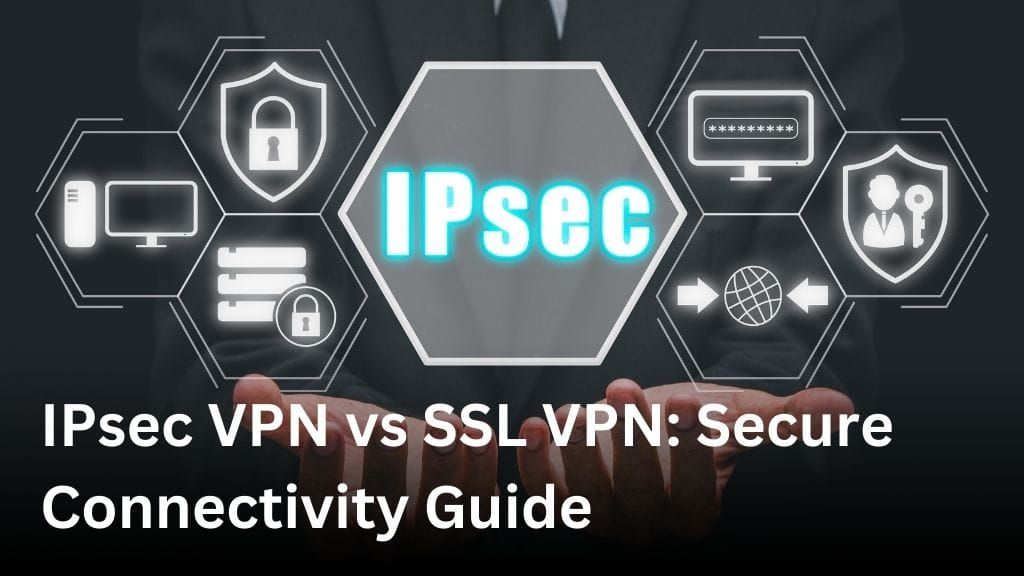
IPsec VPN vs SSL VPN: Secure Connectivity Guide
Welcome to our comprehensive guide on IPsec VPN vs SSL VPN! In an increasingly interconnected world, secure connectivity is of utmost importance. Whether you are a business owner, remote worker, or simply someone who values privacy online, understanding the differences between these two VPN technologies is vital. In this guide, we will delve into the intricacies of IPsec VPN and SSL VPN, comparing their security, performance, and encryption protocols. By the end, you’ll have all the insights needed to make an informed decision about which type of VPN is best suited for your specific needs. Understanding IPsec VPN In the realm of secure connectivity, IPsec VPN stands as a powerful solution that offers robust security features, reliable performance, and advanced encryption protocols. In this section, we will explore the intricacies of IPsec VPN and compare them with SSL VPN to highlight the unique advantages it brings to the table. Security Features IPsec VPN ensures a high level of security by establishing an encrypted tunnel between the user’s device and the remote network. This tunnel encrypts all data transmitted, protecting it from unauthorized access and potential cyber threats. IPsec VPN employs various security measures, including authentication protocols, data integrity checks, and encryption algorithms, to safeguard sensitive information. Performance Capabilities An important consideration in selecting a VPN solution is its performance capabilities. IPsec VPN boasts enhanced performance, enabling faster speeds, lower latency, and efficient bandwidth utilization. With its robust architecture and optimized protocols, IPsec VPN ensures a seamless experience for users, enabling them to transfer data quickly and effectively. Encryption Protocols IPsec VPN leverages strong encryption protocols, such as AES (Advanced Encryption Standard), to secure data transmission. These protocols ensure that any data sent or received through the VPN tunnel remains protected and confidential. With IPsec VPN, organizations can enjoy peace of mind, knowing that their sensitive data is shielded from prying eyes and potential security breaches. Table: IPsec VPN vs SSL VPN Features IPsec VPN SSL VPN Security Highly secure with strong encryption and authentication protocols Secure, but may have vulnerabilities due to the reliance on web browsers Performance Optimized for fast speeds, low latency, and efficient bandwidth utilization Dependent on the performance of the user’s web browser Encryption Uses robust encryption protocols like AES Relies on SSL/TLS protocols for encryption Protocol Uses IPsec protocol for secure communication Relies on SSL/TLS protocols for secure communication Unveiling SSL VPN In this section, we will explore SSL VPN, discussing its unique features, security measures, and performance characteristics. A comparison with IPsec VPN will be provided to help readers understand the strengths and weaknesses of SSL VPN in terms of secure connectivity. Features of SSL VPN SSL VPN, or Secure Sockets Layer Virtual Private Network, is a remote access solution that enables secure connectivity over the internet. It offers several key features that make it a popular choice for many organizations: Web-based Access: SSL VPN provides browser-based access, allowing users to securely connect to resources without requiring the installation of additional software. Application-level Access: SSL VPN provides granular control over access to specific applications or services, ensuring that users can only access the resources they need. End-to-End Encryption: SSL VPN uses SSL/TLS protocols to encrypt data in transit, ensuring that sensitive information remains secure from prying eyes. User Authentication: SSL VPN provides various authentication methods, including username and password, two-factor authentication, and certificate-based authentication, to verify the identity of users. Security Measures of SSL VPN SSL VPN incorporates a range of security measures to protect data and ensure secure connectivity: Transport Layer Security: SSL VPN uses Transport Layer Security (TLS) protocols to establish a secure connection between the user’s device and the VPN gateway. This ensures that data transmitted over the VPN is encrypted and protected. Endpoint Security: SSL VPN often includes endpoint security features such as host checking, antivirus scanning, and firewall inspection to ensure that the connecting device meets the organization’s security requirements. Granular Access Control: SSL VPN allows administrators to define access policies based on user roles, device types, or network locations, ensuring that only authorized users can access specific resources. Advanced Threat Protection: Many SSL VPN solutions offer advanced threat protection features, such as malware detection and prevention, to safeguard against malicious attacks. Performance Characteristics of SSL VPN When considering the performance of SSL VPN, several factors come into play: Bandwidth Utilization: SSL VPN typically consumes more bandwidth compared to IPsec VPN due to the overhead introduced by SSL/TLS encryption. Latency: SSL VPN may introduce additional latency due to the encryption and decryption process. While this may not be noticeable for most users, it can impact real-time applications that require low latency. Scalability: SSL VPN is generally suitable for smaller to medium-sized deployments due to its resource-intensive nature. Large-scale deployments may require additional hardware resources to handle the increased load. Cross-Platform Compatibility: SSL VPN offers broad compatibility across different operating systems and devices, making it suitable for organizations with diverse IT environments. Comparison: SSL VPN vs IPsec VPN Now let’s compare SSL VPN with IPsec VPN to better understand their differences: Criteria SSL VPN IPsec VPN Security Provides encryption at the application layer Provides encryption at the IP layer Performance May introduce more latency and higher bandwidth utilization Generally faster with lower bandwidth utilization Compatibility Compatible with a wide range of devices and operating systems Requires compatible IPsec client software Scalability Suitable for smaller to medium-sized deployments Suitable for large-scale deployments Ease of Use Web-based access without additional client software Requires installation of IPsec client software Based on these factors, organizations can choose the VPN solution that best meets their specific security, performance, and compatibility requirements. Security Comparison: IPsec VPN vs SSL VPN When it comes to choosing a VPN solution, security is of utmost importance. In this section, we will compare the security aspects of IPsec VPN and SSL VPN to help you make an informed decision based on your specific security requirements. Encryption Methods Both IPsec VPN and SSL VPN utilize encryption to protect data transmitted over
What is SSL VPN Explained: Secure Surfing
Welcome to our comprehensive guide on SSL VPNs, where we will dive deep into the technology behind this essential tool for secure online browsing and remote access. SSL VPN, which stands for Secure Sockets Layer Virtual Private Network, is an encryption protocol that ensures a safe and protected online environment. It allows users to securely access private networks and browse the internet without compromising their sensitive information. In this article, we will explore how SSL VPNs work, the benefits they offer, and why they are considered a crucial component in today’s digital landscape. Whether you’re an individual looking to protect your personal data or a business aiming to safeguard your network, SSL VPN technology has a lot to offer. So, let’s get started and unlock the world of SSL VPNs, understanding how they can elevate your online security to new heights. The Benefits of SSL VPN SSL VPNs offer numerous advantages that enhance online security and provide a seamless remote access experience. By encrypting data, SSL VPNs ensure the confidentiality and integrity of information transmitted over the network. Here are some key benefits of using SSL VPNs: Enhanced Security: SSL VPNs use SSL/TLS encryption to safeguard data from unauthorized access. By securing data in transit, SSL VPNs protect against eavesdropping and ensure that sensitive information remains confidential. Secure Remote Access: SSL VPNs enable secure remote access to business networks. Whether employees are working from home, on the go, or in a different geographical location, SSL VPNs provide a secure connection to internal resources and applications. Protection Against Cyber Threats: SSL VPNs help defend against cyber threats such as man-in-the-middle attacks, data interception, and malware injections. Through robust encryption and authentication mechanisms, SSL VPNs ensure that only authorized individuals can access the network. User-Friendly Experience: SSL VPNs offer a user-friendly experience, eliminating the need for complex client software installations. Users can connect to the VPN using standard web browsers, making it accessible across different devices and operating systems. Flexibility and Scalability: SSL VPNs provide flexibility and scalability, allowing organizations to accommodate remote workers and expand their networks as needed. SSL VPNs can support a large number of concurrent connections, ensuring seamless connectivity for employees. In comparison to other VPN protocols, such as IPsec VPNs, SSL VPNs offer distinct advantages. While IPsec VPNs require additional configuration and support from IT teams, SSL VPNs are easier to set up and maintain. SSL VPNs also provide granular control over network access, allowing administrators to define user-level policies and restrict access based on specific requirements. Understanding How SSL VPN Works In this section, we will delve into the inner workings of SSL VPNs and gain a comprehensive understanding of how they operate to provide a secure connection for users. SSL VPNs rely on the SSL protocol, which stands for Secure Sockets Layer, to establish a secure connection between a user’s device and a VPN server. This protocol ensures that data transmitted between the user’s device and the server is encrypted and secure from unauthorized access. The SSL VPN protocol employs a series of steps to establish this secure connection. First, the client initiates a connection request to the VPN server. The server then authenticates the client’s identity using various methods such as username/password authentication or digital certificates. Once the client is authenticated, an SSL/TLS handshake process takes place. This involves the negotiation of encryption algorithms and the exchange of cryptographic keys between the client and server. The SSL/TLS encryption ensures that data transmitted over the VPN is protected and cannot be intercepted by malicious actors. After the SSL/TLS handshake is completed, a secure tunnel is established, encapsulating the user’s data within encrypted packets. This tunnel acts as a virtual pathway for the data to travel between the user’s device and the VPN server. Throughout the data transmission process, SSL VPNs employ a range of security measures to ensure the integrity and confidentiality of the transmitted data. These measures include data encryption, data integrity checks, and protection against various types of cyber attacks. How SSL VPN Works: A Step-By-Step Overview To summarize, here is a step-by-step overview of how SSL VPNs work: The client initiates a connection request to the VPN server. The server authenticates the client’s identity. An SSL/TLS handshake process takes place, negotiating encryption algorithms and exchanging cryptographic keys. A secure tunnel is established, encapsulating the user’s data within encrypted packets. Data is transmitted securely between the user’s device and the VPN server. By following this process, SSL VPNs ensure that users can browse the internet and access remote resources securely and privately. The SSL/TLS encryption and authentication mechanisms employed by SSL VPNs make them a reliable choice for individuals and businesses seeking robust online security. SSL VPN vs IPsec VPN: A Comparison When it comes to choosing the right VPN protocol, there are several options to consider. Two popular choices are SSL VPN and IPsec VPN. In this section, we will compare these two protocols, highlighting their strengths and weaknesses to help you make an informed decision. Ease of Use SSL VPNs are known for their user-friendly interfaces and ease of setup. They generally require minimal configuration, making them accessible even for less tech-savvy users. On the other hand, IPsec VPNs can sometimes be more challenging to configure and may require additional software installation. Compatibility SSL VPNs have an advantage when it comes to compatibility. They are designed to work seamlessly across different devices and operating systems, including Windows, Mac, iOS, and Android. IPsec VPNs, while compatible with a wide range of devices, may require specific client software or additional configurations for certain operating systems. Performance Performance is an essential factor to consider when comparing VPN protocols. SSL VPNs often provide faster performance due to their ability to optimize data transmission. However, IPsec VPNs are known for their robust encryption algorithms, which can offer enhanced security at the cost of slightly slower speeds. Security Both SSL VPN and IPsec VPN protocols offer strong security measures to protect your data. SSL VPNs use SSL/TLS encryption, which is widely
