In an era where our lives are deeply intertwined with our digital devices, the health of our computers is paramount. A machine running smoothly is a gateway to productivity, entertainment, and connection. However, when it starts to act erratically, it can be a source of immense frustration and anxiety. The culprit is often malicious software, or malware, working silently in the background to steal your data, disrupt your activities, or use your machine for nefarious purposes. Recognizing the problem is the first and most critical step toward a solution. It's crucial to recognize the common signs your computer has been compromised by malware to act quickly, mitigate the damage, and reclaim your digital security. This guide will walk you through the top indicators that your machine has been infected.
1. Severe Performance Degradation: The Most Obvious Clue
One of the most immediate and noticeable signs of a malware infection is a sudden and drastic decline in your computer's performance. If your once-zippy machine now takes ages to boot up, struggles to open applications that used to launch instantly, or freezes frequently for no apparent reason, malware could be the hidden cause. This isn't about the gradual slowing that happens over years of use; this is a marked drop in speed that seems to have come out of nowhere. Malicious programs are often poorly coded and run aggressive processes that consume a significant amount of your system's resources, such as CPU power and RAM.
This resource drain is what causes the sluggishness. Malware can be running intensive calculations for crypto-mining, scanning your files for sensitive data, or replicating itself in the background—all of which put an immense strain on your hardware. You might also experience frequent system crashes, including the infamous "Blue Screen of Death" (BSOD) on Windows. While crashes can have many causes, malware that interferes with critical system files or drivers can easily lead to this kind of instability. If your computer has become unreliable and frustratingly slow, it's time to investigate for a potential infection.
Furthermore, a slow internet connection on a specific device can also be a red flag. If your internet is fast on your phone and other devices but crawls to a halt on your primary computer, malware might be hijacking your bandwidth. It could be using your connection to send out spam emails, participate in a Distributed Denial of Service (DDoS) attack as part of a botnet, or upload your stolen data to a remote server. This constant, unauthorized network activity monopolizes your internet connection, leaving very little for your legitimate browsing, streaming, or gaming needs.
1. Unexplained Resource Hogging
To get concrete evidence of a resource hog, you can use your system's built-in monitoring tools. On Windows, this is the Task Manager (accessible by pressing Ctrl+Shift+Esc), and on macOS, it's the Activity Monitor (found in the Utilities folder). Navigate to the "Processes" or "CPU" tab and look for any programs or processes that are consistently using a very high percentage of your CPU, memory (RAM), or disk. Pay close attention to processes with strange, nonsensical names (e.g., "svc.exe," "run32.dll.exe") or those that lack a clear description.
While it's normal for demanding applications like video editors or games to use a lot of resources while you're using them, it is highly suspicious if an unknown process is consuming 99% of your CPU when your computer is supposed to be idle. Malware often tries to disguise itself with names similar to legitimate system files to avoid detection. If you find such a process, a quick internet search of the process name can often reveal whether it is a known malicious entity. Do not terminate a process unless you are sure it is malicious, as ending a critical system process can cause your computer to crash.
2. The Mystery of Vanishing Disk Space
Another perplexing sign of a malware infection is the unexplained loss of hard drive space. You check your storage and find that gigabytes have vanished, even though you haven't installed any large programs or downloaded massive files. This can happen for several reasons, all tied to malware. Some types of viruses are designed to replicate themselves rapidly, filling your drive with copies until there's no space left. This can slow your system to a crawl and prevent you from saving new files.
Other forms of malware may download additional malicious payloads, tools, or stolen data onto your drive without your knowledge. A piece of spyware, for instance, might be recording your screen or logging your keystrokes and saving these large files locally before attempting to upload them. While it's important to first rule out legitimate causes—such as system restore points, Windows update files, or a browser cache that needs clearing—a sudden and significant drop in free space that you cannot account for is a strong indicator of malware activity.
2. Annoying Intrusions: Pop-ups, Toolbars, and Homepage Changes
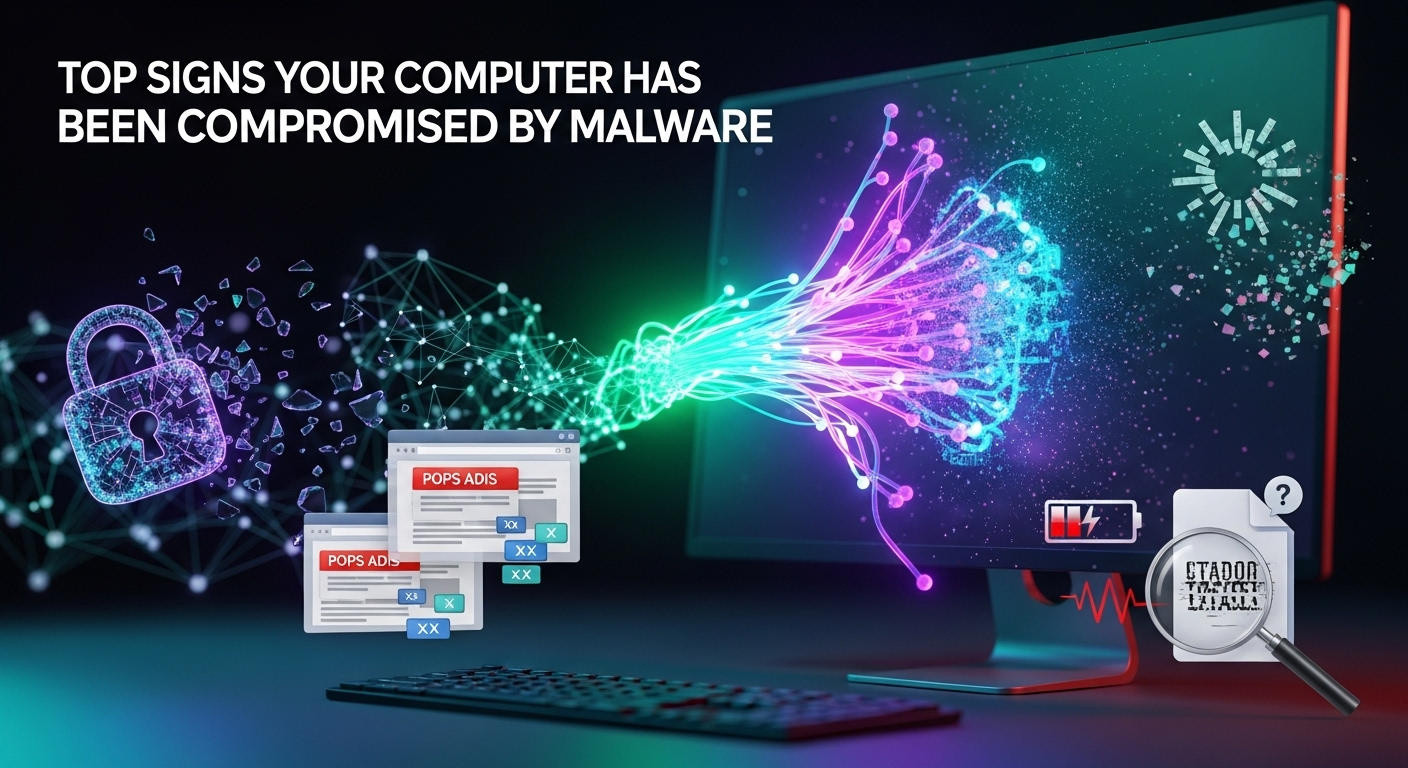
If your browsing experience has turned into a nightmare of constant interruptions, adware is likely to blame. Adware is a type of malware specifically designed to bombard you with advertisements. This goes far beyond the normal ads you see on websites. We're talking about pop-up windows that appear even when your browser is closed, ads that cover the content you're trying to read, and banners for suspicious products appearing on sites where they don't belong. These intrusions are not just annoying; they are a serious security risk.
These pop-ups often promote scams, fake software ("Your PC is infected! Download our cleaner now!"), or link to websites that can install even more dangerous malware, such as spyware or ransomware. Clicking on anything—even the "X" to close the window—can sometimes trigger a malicious download. This type of aggressive advertising is a clear signal that a program has been installed on your computer without your full consent and is now controlling parts of your online experience for financial gain.
The problem is often compounded by browser hijacking. A browser hijacker is a specific type of malware that changes your browser's settings without your permission. Suddenly, your trusted Google or DuckDuckGo search engine is replaced with a strange, unfamiliar one. Your homepage, which you set to your favorite news site, now defaults to a page filled with ads and questionable links. You may also find new, unwanted toolbars or extensions installed in your browser that you have no memory of adding. These are all classic signs your computer has been compromised by malware.
1. The Barrage of Unwanted Pop-up Ads
The defining characteristic of an adware infection is the sheer volume and intrusiveness of the advertisements. These ads are not typically served by the websites you are visiting but are injected directly by the malware on your computer. This means you will see them everywhere, from your desktop to reputable websites that are normally ad-free. They often appear as floating windows, full-screen takeovers, or audio ads that start playing unexpectedly.
The content of these ads is also a major clue. They frequently advertise get-rich-quick schemes, adult content, questionable health supplements, or fake technical support services. The goal of the adware creator is to generate revenue through clicks (pay-per-click) or to trick you into purchasing useless products or falling for a scam. If your screen is suddenly littered with pop-ups, it's a near-certainty that your machine is infected.
2. Your Browser Has a Mind of Its Own
When a browser hijacker takes over, it feels like you've lost control of your primary tool for accessing the internet. The most common symptom is your default search engine being redirected. When you type a search query into the an address bar, you expect to see results from your chosen provider, but instead, you're sent to a lookalike search engine you've never seen before. These fake search engines not only provide poor-quality results but are also a massive privacy risk.
These malicious search sites can monitor and record all your search queries, log the websites you visit, and use that data to build a profile on you for targeted advertising or identity theft. Worse, they can redirect you to phishing pages designed to steal your login credentials for banking, email, or social media. Similarly, unwanted toolbars and browser extensions can perform the same malicious data collection. If you find you can't change your homepage back or remove a persistent toolbar, a hijacker is almost certainly the culprit.
3. Suspicious Network and Account Activity
Sophisticated malware often tries to stay hidden on your local machine while creating a flurry of activity online. Its primary goal is often to communicate with a remote "Command and Control" (C&C) server run by the attacker. This server can issue commands, receive stolen data, and coordinate attacks. From the user's perspective, this can manifest as strange network behavior or unexplained issues with your online accounts.
One of the most personal and alarming signs is when your friends, family, or colleagues start receiving bizarre messages from your email or social media accounts. These messages typically contain a generic hook like "Hey, check out this funny video!" or "I can't believe this is you in this picture!" followed by a suspicious link. If you're being told that you're sending out spam, it's a huge red flag that your account credentials have been stolen, likely by keylogging malware on your computer, or that a malicious application has been granted access to your account.
Another symptom is a spike in network activity even when you aren't actively using your computer. You might notice the "send/receive" lights on your router blinking frantically while your PC is idle, or a network monitoring tool may show a large amount of data being uploaded or downloaded. This could be the malware sending your personal files to an attacker, receiving new instructions, or using your computer to attack other systems on the internet.
1. Friends Receiving Strange Messages From You
This is one of the most common ways people discover their accounts—and by extension, their devices—have been compromised. The malware on your computer may have captured your login credentials the moment you typed them, or a malicious browser extension could be using your active login session to post on your behalf. The goal of the attacker is to use the trust your contacts have in you to spread the malware further. When your friend clicks the link, their own computer becomes infected, and the cycle continues.
If you discover this is happening, your immediate first step should be to warn your contacts not to click any links from you. The second, equally critical step is to change the passwords for the affected accounts from a different, trusted device. Simply changing the password from the infected computer is useless, as the keylogger will just capture the new password as well. This sign indicates a serious breach that requires immediate action to contain.
2. Unusual Outbound Network Traffic
While it's more technical, monitoring your network traffic can provide definitive proof of a compromise. Tools like Windows Resource Monitor (built-in) or third-party applications like GlassWire or Wireshark can show you exactly which programs are communicating over the internet and where they are sending data. If you see an unknown program sending large amounts of data to a strange IP address, especially one located in a foreign country, you've likely found malware "phoning home."
This outbound traffic is the malware carrying out its primary function. If it's spyware, it's uploading your stolen documents, passwords, and browsing history. If your computer has been conscripted into a botnet, it might be participating in a DDoS attack by flooding a target website with traffic. This not only makes you an unwilling accomplice in a cybercrime but also, as mentioned earlier, can severely slow down your own internet connection.
4. Security Software Disabled and Ransom Demands
Perhaps the most brazen sign of a malware infection is when the very software designed to protect you is attacked. Many advanced malware strains are coded to seek out and disable antivirus programs, anti-malware scanners, and firewalls as their first order of business. This is a self-preservation tactic that allows the malware to operate undetected and prevents you from easily removing it. If you suddenly find that your antivirus program won't start, its icon has vanished from the system tray, or its real-time protection is mysteriously turned off and won't turn back on, you should assume your system is compromised.
Another aggressive tactic is the use of "scareware." This involves a professional-looking pop-up, often mimicking a legitimate antivirus scan, that claims your computer is riddled with hundreds or thousands of viruses. It then demands that you pay for the "full version" of their software to remove these fictional threats. In reality, the pop-up itself is the malware. Paying the fee does nothing but send your money (and credit card details) to criminals and may even install more dangerous malware on your system.
However, the most terrifying and unmistakable sign of a compromise is a ransomware attack. In this scenario, you are locked out of your own files. You'll find that your documents, photos, and videos have been encrypted and are now inaccessible. In their place, you will find a ransom note—often as a text file in every folder and as your desktop wallpaper. This note will explain that your files are being held hostage and demand a payment, usually in a cryptocurrency like Bitcoin, in exchange for a decryption key.
1. Your Antivirus or Firewall is Mysteriously Disabled
When you try to run a manual scan with your trusted antivirus software and the program fails to launch or immediately crashes, it's a dire warning. The same goes for trying to access the Windows Defender Security Center or your system's firewall settings, only to find them greyed out or reporting an error. Malware does this by terminating the security software's processes, corrupting its files, or modifying system settings to prevent it from running at startup.
This is a clear indication that you are dealing with a sophisticated threat, not just a simple piece of adware. The malware knows that as long as your security software is active, its lifespan is limited. By neutralizing your primary line of defense, it gains free rein to carry out its objectives, whether that's stealing data, encrypting files, or taking full remote control of your machine. Attempting to reinstall your security software may also fail until the underlying infection is addressed.
2. Ransom Demands and Missing Files
A ransomware attack is the digital equivalent of a kidnapping. Famous strains like WannaCry and CryptoLocker have caused billions of dollars in damages worldwide. The attack is unmistakable: you will see a prominent message on your screen demanding money. The ransom note will often include a countdown timer, threatening to delete the decryption key forever if the ransom is not paid within a certain timeframe. Your personal files will have new, strange file extensions, and you will be unable to open them with any program.
In this situation, security experts universally advise against paying the ransom. There is no guarantee that the criminals will provide a working decryption key, and paying them only funds their future criminal activities and marks you as a willing target for future attacks. Instead, the only truly effective defense against ransomware is to have a robust, recent, and disconnected backup of your important files. If you are a victim, your best course of action is to disconnect the PC from the network to prevent the ransomware from spreading and seek expert help.
5. Unexpected System Changes and File Issues
Beyond dramatic slowdowns and pop-ups, malware can cause a variety of subtle but unsettling changes to your system's environment and your personal files. These changes are often designed to ensure the malware's persistence or are a side effect of its sloppy and destructive coding. Noticing these oddities can help you catch an infection before it causes more significant damage.
You might turn on your computer one day to find new, unfamiliar icons on your desktop that you didn't put there. Or you may open your list of installed programs to find software you have no recollection of downloading. These are often Potentially Unwanted Programs (PUPs) that were bundled with a free application you installed. While not always malicious in the same way as a virus, they can bog down your system, display ads, and track your browsing habits.
More alarmingly, you might find that your personal files and folders have been altered. Files might be deleted, moved to a different location, or have their contents replaced with gibberish. You may find that file permissions have been changed, preventing you from accessing your own documents. This can be the work of a data-wiping virus, which has the sole purpose of causing chaos, or it can be a precursor to a ransomware attack where files are first copied and then encrypted.
| Malware Type | Primary Signs & Symptoms | Main Goal |
|---|---|---|
| Adware | Constant pop-up ads, browser homepage changed, new toolbars. | Generate revenue through ad clicks and impressions. |
| Spyware | PC is slow, account credentials stolen, friends receive spam. | Steal sensitive information (passwords, financial data). |
| Ransomware | Files are encrypted and inaccessible, ransom note on screen. | Extort money from the victim in exchange for a decryption key. |
| Botnet/Zombie | Very slow internet connection, high network traffic when idle. | Use the computer's resources for coordinated attacks (DDoS, spam). |
| Virus/Worm | Files are deleted or corrupted, frequent system crashes, self-replicates. | Damage the system, corrupt data, and spread to other computers. |
| Keylogger | (Often works with Spyware) Account credentials are stolen. | Record every keystroke to capture passwords, messages, and credit card numbers. |
1. New Icons and Unfamiliar Programs Appear
The sudden appearance of new software is a classic bundling symptom. When you install free software from the internet, the installer is often designed to trick you into agreeing to install additional "offers." Most users click "Next" rapidly without reading the fine print, inadvertently agreeing to install extra toolbars, system "optimizers," or coupon apps. These are known as Potentially Unwanted Programs (PUPs).
While the PUPs themselves might not be a virus, they are a security risk. They clutter your system, consume resources, and can have spyware-like features to track your online behavior. More importantly, their presence shows that your guard was down during an installation process, which is exactly how more dangerous malware, like trojans, can get onto your system. Regularly checking your "Apps & Features" (Windows) or "Applications" (Mac) folder for software you don't recognize is a good security habit.
2. Files are Deleted, Modified, or Corrupted
Discovering that your important files are gone or damaged is a heart-stopping moment. Unlike ransomware, which announces its presence, some viruses work silently to destroy data. You might try to open a crucial work document only to be met with an error message saying the file is corrupted. Or you might navigate to your "My Pictures" folder to find it completely empty.
This is a sign of a particularly destructive type of malware. In some cases, the files may not be truly deleted but simply hidden. You can try to change your folder settings to "Show hidden files and folders" to see if they reappear. However, if they have been genuinely corrupted or overwritten, there is often no way to recover them without a backup. This symptom, more than any other, underscores the critical importance of maintaining regular, separate backups of all your valuable data.
Frequently Asked Questions (FAQ)
Q: Can my Mac get malware? I thought they were immune.
A: This is a common and dangerous misconception. While macOS has strong built-in security features and historically had fewer threats than Windows, Macs can absolutely get malware. Cybercriminals have increasingly targeted the growing Mac user base with adware, spyware, and even ransomware specifically designed for macOS. Following safe computing practices is just as important for Mac users as it is for Windows users.
Q: What is the very first thing I should do if I suspect my computer is compromised?
A: The first and most critical step is to disconnect the computer from the internet. Unplug the Ethernet cable or turn off the Wi-Fi. This immediately severs the malware's connection to its command and control server, preventing it from stealing more data, receiving new instructions, or spreading to other devices on your network. After disconnecting, you can proceed with scanning your system with a reputable, up-to-date antivirus program.
Q: Will reinstalling my operating system get rid of all malware?
A: In most cases, yes. Performing a clean installation of your operating system (Windows or macOS) by formatting the hard drive will wipe out almost all forms of malware. However, some extremely advanced and rare types of malware, known as rootkits or bootkits, can infect the system's firmware (BIOS/UEFI) and could theoretically survive a reinstallation. For 99.9% of users, a full wipe and clean install from a trusted source (like a USB drive created with Microsoft's Media Creation Tool) is the most surefire way to have a 100% clean system.
Q: Is a slow computer always a sign of malware?
A: No, not always, but malware should be a primary suspect you need to rule out. Other common causes of a slow computer include: an old or failing hard drive, insufficient RAM, too many legitimate programs running at startup, a nearly full hard drive, or overheating components. However, because malware is such a significant threat, you should always run a thorough antivirus and anti-malware scan first to eliminate it as a possibility before you start investigating hardware or other software issues.
Conclusion
Your computer is an extension of your personal and professional life, and keeping it secure is non-negotiable. Being able to identify the warning signs of a compromise is your first line of defense in the ongoing battle against cyber threats. From a frustratingly slow system and a browser full of pop-ups to disabled security software and alarming ransom notes, the signs your computer has been compromised by malware can range from subtle to overt.
By staying vigilant and recognizing these symptoms early, you can take swift action to isolate your device, remove the threat, and prevent catastrophic data loss or financial theft. The key to long-term digital safety lies in a proactive approach: use a reputable antivirus suite, keep your operating system and all software updated, be cautious about what you download and click, and—most importantly—maintain regular backups of your precious data. Stay informed, stay vigilant, and you can navigate the digital world safely and confidently.
***
Article Summary
This comprehensive article, "Top Signs Your Computer Has Been Compromised by Malware," serves as an in-depth guide for users to identify, understand, and react to a potential malware infection. It details five primary categories of symptoms: 1) Performance Degradation, including system slowness, crashes, and unexplained resource usage; 2) Annoying Intrusions, such as adware pop-ups and browser hijacking that alter homepages and search engines; 3) Suspicious Network and Account Activity, like spam messages being sent from your accounts or unusual data traffic; 4) Direct Security Attacks, where antivirus software is disabled or a ransomware note appears demanding payment; and 5) Unexpected System Changes, involving corrupted files or the appearance of unfamiliar programs. The article emphasizes that while some signs are subtle, others like ransomware are unmistakable. It provides actionable advice, including using built-in tools like Task Manager, and includes a comparative table of malware types, an FAQ section addressing common concerns like Mac security and initial response steps, and a concluding call to action for proactive security measures like regular backups and software updates.