How To Get VPN on School Chromebook If Blocked – Learn how to get a VPN on your school Chromebook even if it’s blocked. This comprehensive guide will help you bypass restrictions and ensure your online privacy and freedom.
In today’s digital age, internet access has become a fundamental part of education. However, many schools impose strict restrictions on their networks, limiting access to various websites and services.
One common solution to bypass these restrictions is using a VPN (Virtual Private Network). But what if the school has blocked VPNs on Chromebooks? This article will provide you with detailed, step-by-step instructions on how to get VPN on school Chromebook if blocked, ensuring you can access the internet freely and securely.
Table of Contents
ToggleWhat is a VPN?
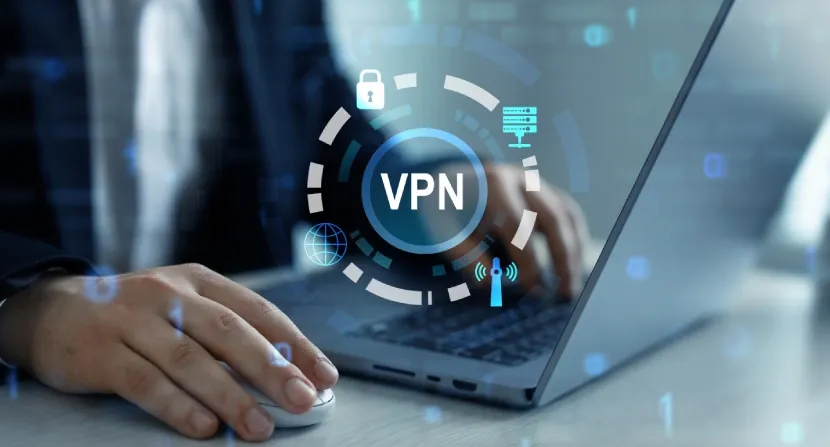
A VPN, or Virtual Private Network, is a tool that creates a secure and encrypted connection over the internet. This encrypted tunnel allows you to hide your online activity, making it difficult for anyone, including your school, to monitor what you’re doing online. VPNs are commonly used to access blocked websites, enhance security, and maintain privacy.
Why Do Schools Block VPNs?
Schools block VPNs to control and monitor student internet usage, ensuring that students only access educational content and not distracting or inappropriate websites.
Blocking VPNs is also a measure to prevent bypassing firewalls and other security protocols set by the school. However, these restrictions can sometimes hinder legitimate and productive use of the internet for educational purposes.
How To Get VPN on School Chromebook If Blocked
Assessing Your School’s Restrictions
Before diving into the methods, it’s crucial to understand the type of restrictions your school has implemented. This will help you choose the most effective strategy for getting a VPN on your Chromebook. Some schools block VPN websites, while others might block the installation of VPN apps or extensions.
Method 1: Using a VPN Extension for Chrome
Finding a Suitable VPN Extension
If your school has blocked VPN apps but not extensions, you can use a VPN extension for Chrome. Many VPN services offer Chrome extensions that are easy to install and use.
- Open the Chrome Web Store.
- Search for a reliable VPN extension (e.g., NordVPN, ExpressVPN, TunnelBear).
- Select and add the extension to Chrome.
Setting Up the VPN Extension
Once you’ve added the extension to Chrome, follow these steps:
- Click on the VPN extension icon in the Chrome toolbar.
- Sign in or create an account if required.
- Choose a server location and connect.
Method 2: Using a VPN App Installed via APK
Enabling Developer Mode
If your school has blocked the Chrome Web Store or specific VPN extensions, you might need to install a VPN app using an APK file. This method requires enabling Developer Mode on your Chromebook.
- Power off your Chromebook.
- Hold the Esc + Refresh keys and press the Power button.
- When the recovery screen appears, press Ctrl + D.
- Follow the on-screen instructions to enable Developer Mode.
Installing the VPN APK
After enabling Developer Mode:
- Download the VPN APK file from a trusted source.
- Open the Files app and locate the APK file.
- Click on the file to install the VPN app.
- Open the VPN app, sign in, and connect to a server.
Method 3: Using a Browser-Based VPN
Finding a Browser-Based VPN
If installing extensions or apps is not an option, you can use a browser-based VPN. These VPNs work directly from a website without needing any installation.
- Search for browser-based VPNs (e.g., Hide.me, Proxysite.com).
- Open the website and enter the URL you want to visit.
- The VPN will create a secure connection and load the website for you.
Method 4: Using a Portable VPN
Setting Up a Portable VPN on a USB Drive
A portable VPN can be run from a USB drive, bypassing the need for installation on your Chromebook.
- Download a portable VPN client (e.g., PortableVPN, OpenVPN Portable) on a computer.
- Save the client to a USB drive.
- Plug the USB drive into your Chromebook.
- Run the VPN client from the USB drive and connect to a server.
Method 5: Using a Proxy Server
Configuring Proxy Settings
Proxy servers can also be used to bypass network restrictions. Here’s how to configure a proxy on your Chromebook:
- Open Chrome settings.
- Navigate to Advanced > System > Open proxy settings.
- Enter the proxy server details provided by your VPN or proxy service.
- Save the settings and restart your browser.
FAQs
Why can’t I access certain websites on my school Chromebook?
Schools impose network restrictions to ensure students focus on educational content and stay away from inappropriate websites. These restrictions can block various websites and services, including VPNs.
Is it legal to use a VPN on my school Chromebook?
Using a VPN is legal; however, bypassing school network restrictions might violate school policies. Always check with your school’s IT department before attempting to use a VPN.
What are the risks of using a VPN on a school network?
Using a VPN on a school network can potentially lead to disciplinary action if it violates school policies. Additionally, free VPNs might compromise your security and privacy. Always use reputable VPN services.
Can my school detect if I’m using a VPN?
Yes, schools can detect VPN usage through various methods like deep packet inspection (DPI). However, some VPNs offer stealth modes designed to avoid detection.
What are the benefits of using a VPN on a Chromebook?
A VPN enhances your online privacy, allows you to access blocked content, and secures your internet connection against potential threats.
Conclusion
Navigating internet restrictions on a school Chromebook can be challenging, but it’s not impossible. By understanding your school’s restrictions and following the methods outlined in this guide, you can successfully get a VPN on your school Chromebook if blocked.
Always use these methods responsibly and consider the implications of bypassing school policies. With the right VPN, you can ensure your online activities remain private, secure, and unrestricted.